Free · no sign-up · your own private data
The test automation practice website that behaves like a real app
TestDesk is a realistic customer operations console — tickets, customers, orders, inventory and reports — built for practicing browser test automation. Write tests with Playwright, Selenium, Cypress, WebdriverIO or an AI testing agent against the things that break real test suites: iframes, shadow DOM, new tabs, native dialogs, file downloads, slow networks and two-step sign-in.
✓ No account✓ Ready in 30 seconds✓ Your own data
- Practice tasks
- 79
- Lab challenges
- 15
- App pages
- 20+
// The password changes on every load, so read it from the page.
await page.goto('/login');
const password = await page
  .getByTestId('hint-password').innerText();
await page.getByTestId('login-username').fill('analyst');
await page.getByTestId('login-password').fill(password);
await page.getByTestId('login-submit').click();

// Next: open the demo inbox in a new tab and
// fetch the one-time code before it expires…- ✓ opens the sign-in page (412ms)
- ✓ reads the dynamic password (96ms)
- ✓ fetches the one-time code from the inbox (3.1s)
- ✓ lands on the dashboard (588ms)
- 4 passed (4.2s)
Try it right now — no sign-in
Three tiny challenges. Can you beat them?
Each one is a real problem that breaks automated tests. Solve them by hand, then try them with your test tool — they work right on this page.
0 / 3 solved
1. The runaway button
UnsolvedIt moves when you get close. Catch it.
2. Trapped in an iframe
UnsolvedThis button lives in a separate document inside the page. Press it.
3. Hidden in the shadows
UnsolvedEasy for you, but this button lives inside a shadow root.
The problem TestDesk solves
Practice sites stop where real end-to-end testing starts
Few test automation practice websites feel like a real, production-ready product. Most are a collection of isolated components, and many that include app-like features keep them small: a login form, a short list, a single checkout. That is fine for learning a locator, but it never prepares you for testing a whole application. And where the data is shared, one tester's changes can break everyone else's tests.
Typical practice websites
- Component-only pages. One button, one table or one dropdown per page, with no workflow around it.
- Small, limited app features. A login and a form or two, so tests end after a few steps.
- Nothing connects. Changes on one page never show up on another, so there is no end-to-end flow to verify.
- Shared data, or none at all. Either everyone edits the same records, so other people's changes break your assertions, or nothing you save is kept.
TestDesk
- A whole, production-like website. Sign-in with a one-time code, a dashboard, tickets, customers, orders, inventory, shipments, returns, reports and settings.
- Real end-to-end test cases. Create a ticket and find it on the customer's page and in the dashboard totals, or take an order from checkout through shipping to a return.
- Your own data. Every visitor gets a private copy of the data. Create, edit and delete anything: your changes are saved, nobody else sees them, and nobody else can change what your tests expect.
- Plus a Challenge Lab. Focused practice for difficult elements: shadow DOM, iframes, canvas, drag and drop, unstable IDs and stale elements.
Look inside
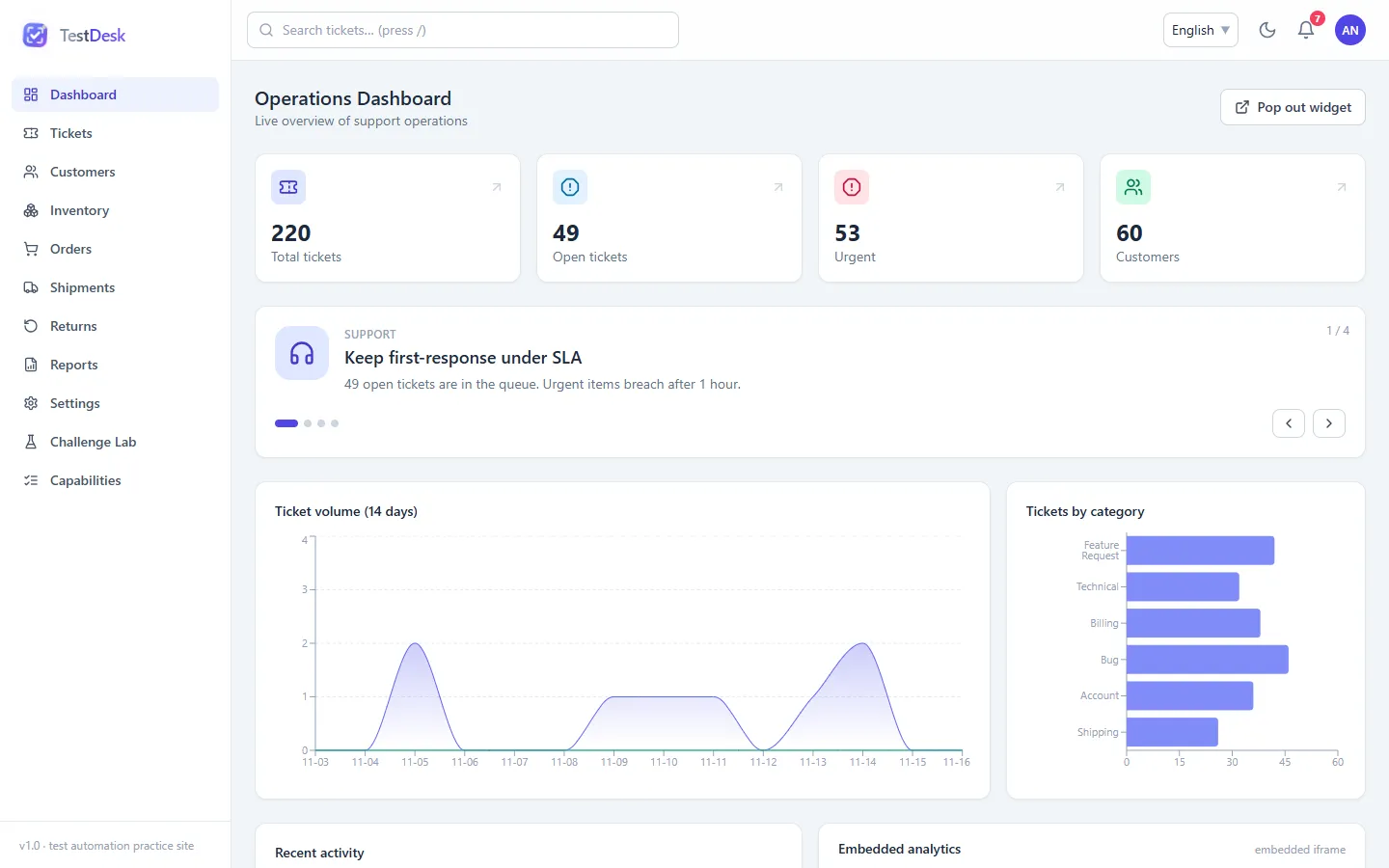
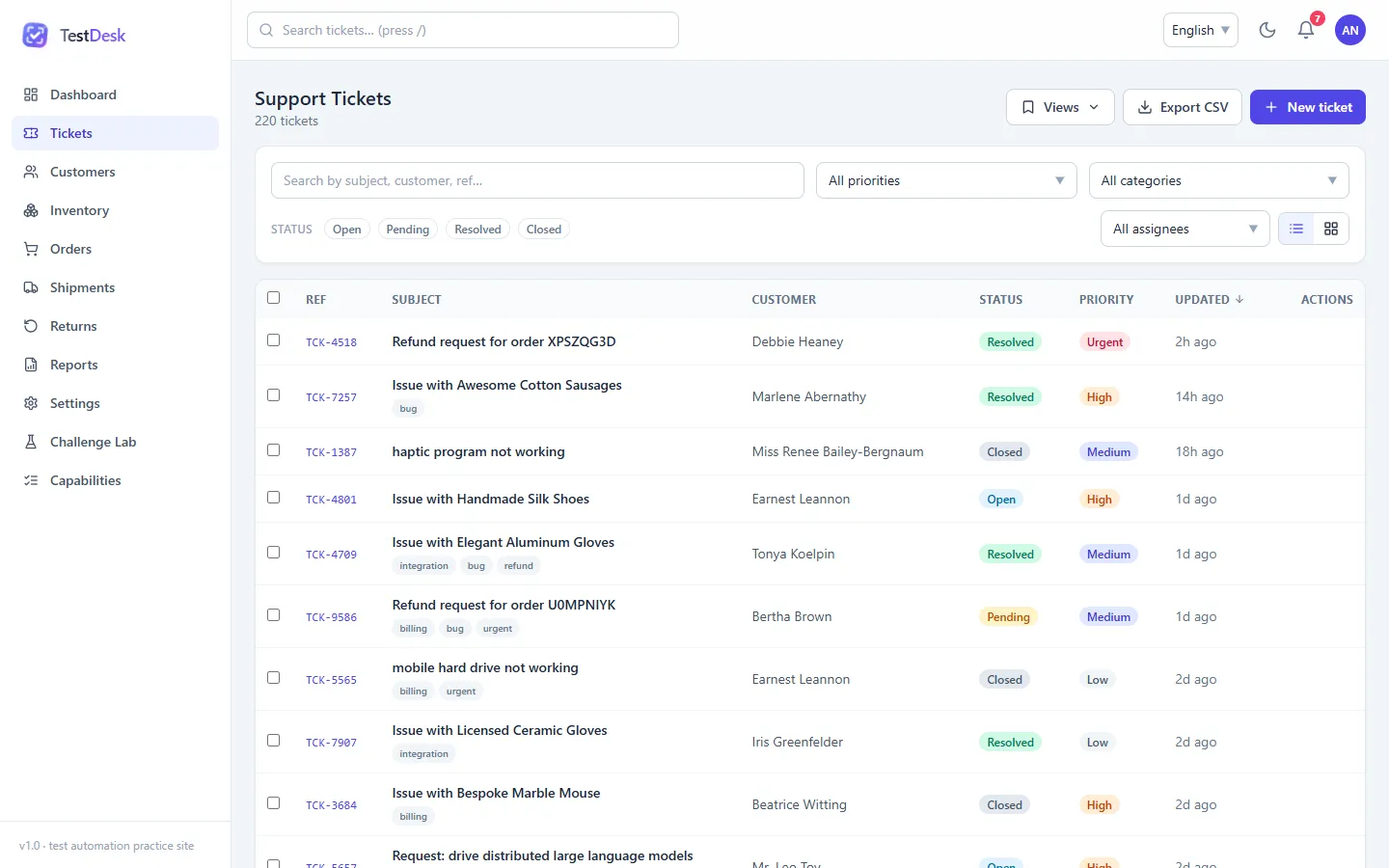
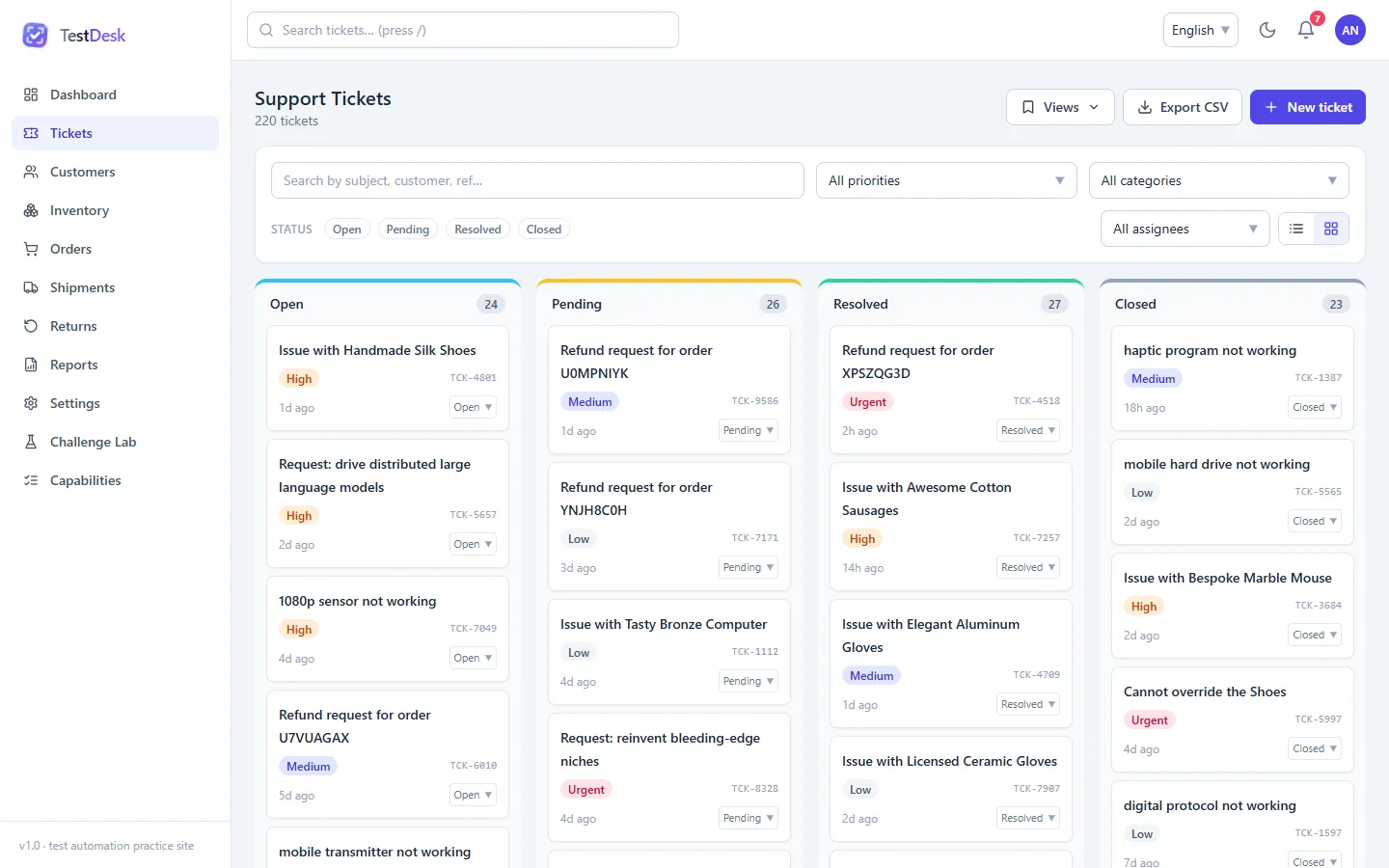
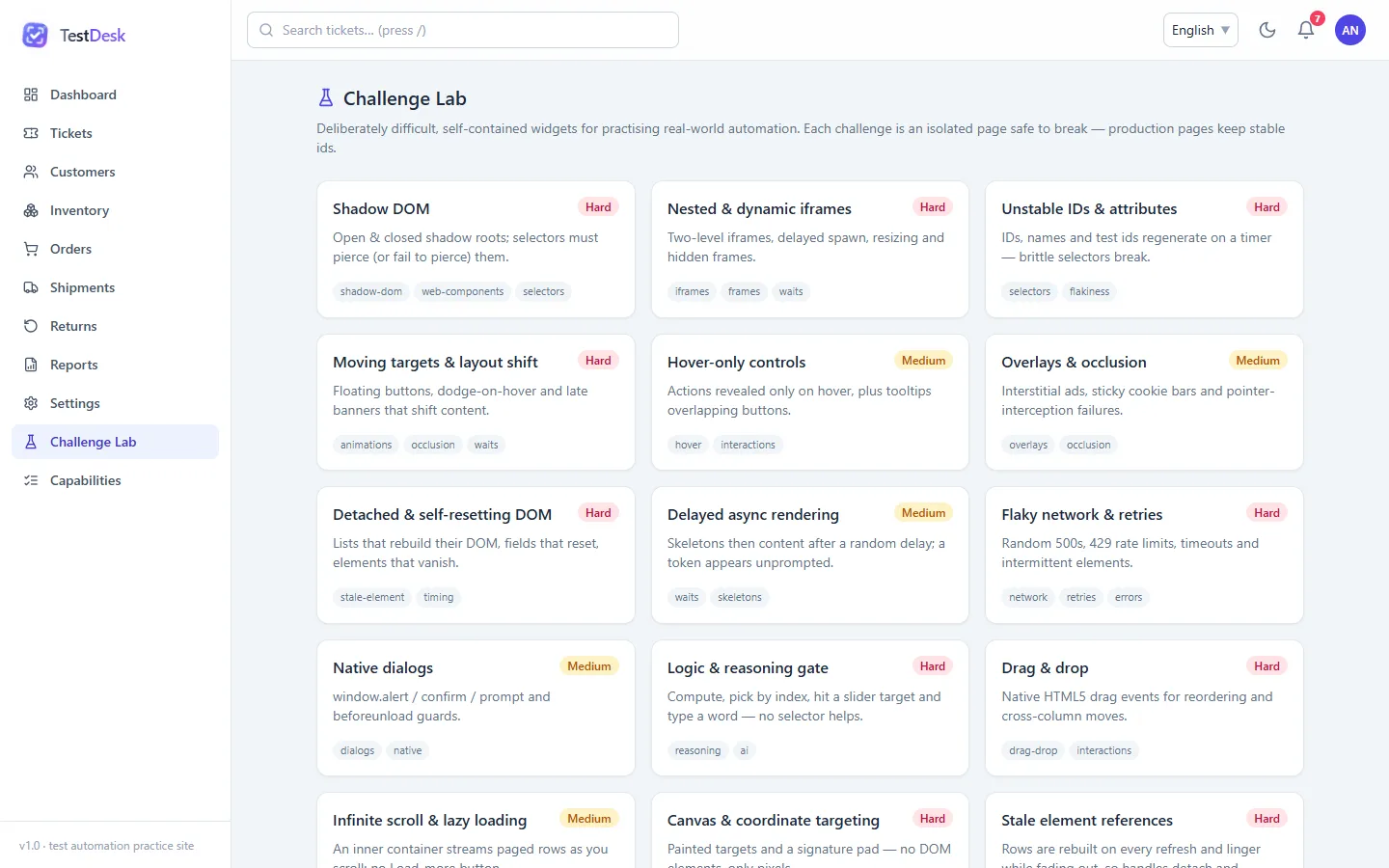
A real product, ready for your test suite
These are the screens you'll be testing, not mock-ups.
Why TestDesk
Practice on a product, not a page of buttons
Real workflows
Every browser feature sits inside a natural flow. A CSV download happens after you filter a table and click Export; a confirm dialog appears when you bulk-delete tickets. You find triggers the way you would on a real site.
Easy, medium and hard
Tasks are tiered from stable data-testid selectors up to unstable IDs, elements that detach,
overlays that intercept clicks and canvas targets with no DOM at all.
Your data is yours alone
Unlike shared demo sites, every visitor works on a private copy of the data, kept in their own browser. Your changes never affect other testers, and theirs never break your tests. Every copy starts from the same seed data, and Settings → Reset demo data puts yours back.
What you can practice
Every browser capability your tests need to handle
Each capability has guided practice tasks with a precondition, a task and an expected outcome, so you know when your test is right.
-
Two-step sign-in with OTP
A password that changes on every load, a one-time code sent to a demo inbox in a new tab, a 60-second expiry and resend.
-
New tabs and pop-up windows
Open tickets in a new tab, a print view, a form that posts to
_blankand a pop-out widget opened withwindow.open. -
Native dialogs and modals
Handle
alert,confirm,promptandbeforeunload, plus nested and focus-trapped modals. -
File downloads and uploads
Export filtered CSVs, download PDFs and reports, attach files with the picker or by drag and drop, and trigger validation errors.
-
Iframes
Switch into an embedded analytics dashboard, a vendor portal with a frame inside a frame, and a real third-party site.
-
Waits, loaders and toasts
Skeletons, random 5–10 second loaders, toasts that disappear, and adjustable network latency and error rate.
-
Tables, pagination and virtual lists
Filter, sort and page through tables, and find rows in a virtualized list that are not in the DOM yet.
-
Forms and multi-step wizards
A create-ticket wizard with validation, an order flow, a rich text editor, sliders and an unsaved-changes guard.
-
Menus, keyboard and clipboard
Right-click context menus, hover menus, row action dropdowns, keyboard shortcuts, copy to clipboard and print.
-
Back and forward navigation
Filters live in the URL, so you can check that they survive a trip to a detail page and back.
-
Dark mode, locales and RTL
Switch between English, Deutsch and Arabic (right-to-left) and light or dark themes, and check the layout still holds.
-
Orders and fulfilment
Create orders, move shipments through their steps and process returns, with state rules that reject invalid moves.
Challenge Lab
15 challenges built to break brittle tests
Each challenge isolates one problem that makes real test suites flaky, with a goal and hints.
Shadow DOM
HardOpen and closed shadow roots; selectors must pierce (or fail to pierce) them.
Nested and dynamic iframes
HardTwo-level iframes, delayed spawn, resizing and hidden frames.
Unstable IDs and attributes
HardIDs, names and test IDs regenerate on a timer, so brittle selectors break.
Moving targets and layout shift
HardFloating buttons, dodge-on-hover and late banners that shift content.
Hover-only controls
MediumActions revealed only on hover, plus tooltips overlapping buttons.
Overlays and occlusion
MediumInterstitial ads, sticky cookie bars and clicks intercepted by other elements.
Detached and self-resetting DOM
HardLists that rebuild their DOM, fields that reset and elements that vanish.
Delayed async rendering
MediumSkeletons, then content after a random delay; a token appears unprompted.
Flaky network and retries
HardRandom 500s, 429 rate limits, timeouts and intermittent elements.
Native dialogs
Mediumwindow.alert,confirm,promptandbeforeunloadguards.Logic and reasoning gate
HardCompute, pick by index, hit a slider target and type a word — no selector helps.
Drag and drop
HardNative HTML5 drag events for reordering and moving cards between columns.
Infinite scroll and lazy loading
MediumAn inner container streams rows as you scroll; there is no Load more button.
Canvas and coordinate targeting
HardPainted targets and a signature pad — no DOM elements, only pixels.
Stale element references
HardRows rebuild on every refresh and linger while fading out, so handles detach and locators briefly match twice.
How it works
Start in under a minute
-
Sign in
No account needed. The sign-in page shows the username and a password that changes on every load.
-
Get the code
Open the demo inbox in a new tab, read the one-time code and enter it before it expires.
-
Pick a task
The Capabilities page lists every feature with how to trigger it and its difficulty. Write a test, run it, repeat.
FAQ
Frequently asked questions
What is TestDesk?
TestDesk is a free practice website for test automation. It looks and behaves like a real customer operations console, so you can practice writing end-to-end tests against realistic pages instead of toy demos.
Which tools can I use?
Any tool that drives a real browser: Playwright, Selenium WebDriver, Cypress, WebdriverIO, Puppeteer, TestCafe, Robot Framework, or an AI agent that controls a browser.
Do I need an account?
No. The sign-in page shows the username and the current password, and the one-time code arrives in a built-in demo inbox. Signing in is itself one of the practice tasks.
Will my tests change data for other people?
No. The backend runs inside your own browser and saves to your browser's storage. Create, edit and delete freely, then use Settings → Reset demo data to start again from the original data.
Can I practice handling slow or failing requests?
Yes. Settings lets you add network latency and a random failure rate, and the Challenge Lab has a flaky-network challenge with 500 errors, rate limits and timeouts.
Is it good for beginners?
Yes. Every task is tagged easy, medium or hard. Start with the easy ones, which use stable
data-testid selectors, and work up to the Challenge Lab.
Ready to write your first test?
Sign in, open the Capabilities page and pick a task. It is free and nothing to install.
Start practicing